

GDPro help: signing in
Signing in to GDPro GO, step by step. Everything else about using GDPro is in GDPro's own Help.
GDPro GO
Two sign-ins
GDPro GO is GDPro running on Arise Software's servers. Nothing is installed on your computer: you open it with a small connection file, from anywhere with an internet connection. Getting in takes two sign-ins, one after the other.
- GDPro GO, the cloud: the front door. It connects you to the secure computer GDPro runs on. Arise looks after this sign-in. Your user name is
arise\and then your user name (a backslash, not a forward slash). Your password is in your welcome email from Arise. - GDPro: your workspace. Your own GDPro user name and password, from whoever looks after GDPro users in your office. This sign-in decides what you can see and do in GDPro.
They are two different accounts. Don't share either password with anyone.
1. Sign in to GDPro GO
Open the connection file
- Find the email from Arise Software with the connection file attached, and double-click the attachment.
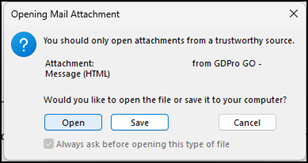
- If Outlook asks about Opening Mail Attachment, click Open.
The security warning
- A Remote Desktop Connection security warning appears.
- Tick Clipboard and Printers, and click Connect.
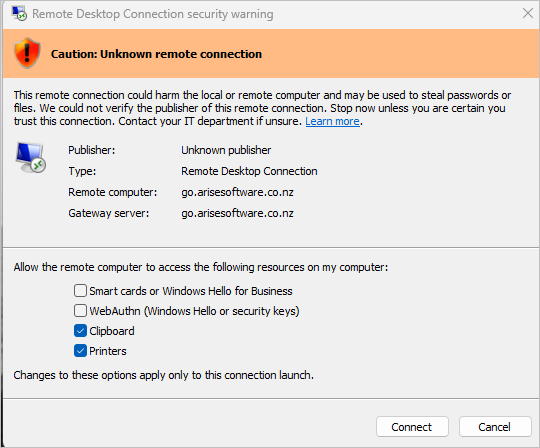
The connection is for GDPro only: the files on your own computer can't be reached from it. If the warning offers to share anything else, ask your IT people before you connect.
Your GDPro GO user name and password
- User name:
arise\and then your user name. Use a backslash, not a forward slash. - Password: type it in rather than pasting it, and leave Remember me unticked. The eye at the end of the box shows what you've typed.
- Click OK.
![Windows Security: Enter your credentials for go.arisesoftware.co.nz, with the user name arise\[your username]](/assets/img/gdpro-help/cloud-sign-in.png)
The identity warning
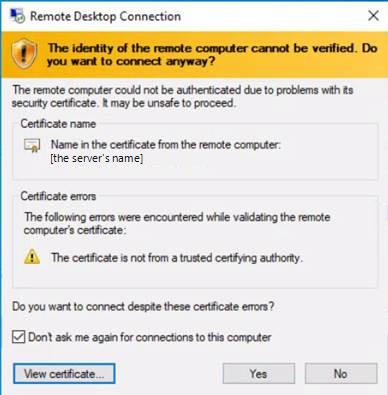
- If a warning says the identity of the remote computer can't be verified, tick Don't ask me again for connections to this computer.
- Click Yes.
2. Sign in to GDPro
- On the GDPro GO desktop, double-click the GDPro icon.

- Type your GDPro Username and Password, and click Sign in. Signing in means you agree to the terms of use.
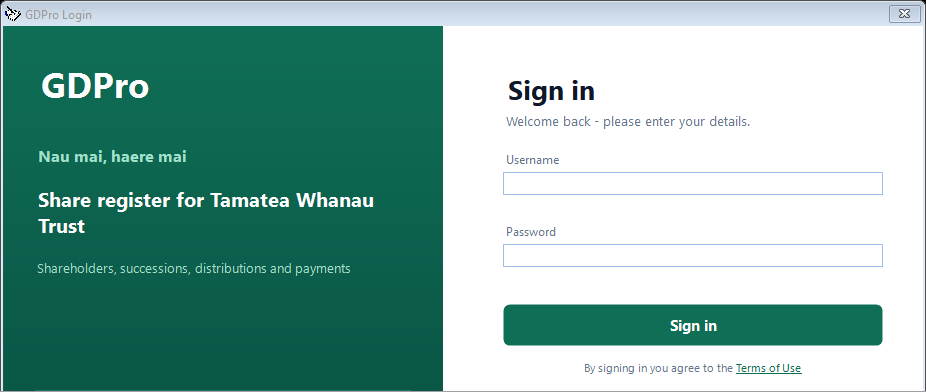
Everything you do in GDPro is recorded against your user name, so keep your password to yourself. Change it after your first sign-in: in GDPro, click Change Pwd on the Home tab.
Stuck?
Can't get in?
Forgotten your GDPro GO password
It's in your welcome email from Arise Software. Can't find it? Email support@arisesoftware.co.nz and we'll sort it out.
Forgotten your GDPro password
Ask whoever looks after GDPro users in your office. They can give you a new password in GDPro: Users tab, Users, then Change Password on your row. If nobody in your office can, email us.
Your GDPro GO sign-in is already in use
A GDPro GO sign-in can be used in one place at a time. When the person using it signs out, you can sign in.
Not your website login
A login on this website (for owner updates or a distribution setup) is a separate account again. It doesn't sign you in to GDPro GO or to GDPro.
Still stuck?
Email support@arisesoftware.co.nz. Tell us which step you're on and what the screen says: a screenshot is even better.
Once you're in
The rest of GDPro's help is inside GDPro
In GDPro, click Help on the Home tab. The user guides, a page on each screen and a search are all there. They match the version of GDPro you're running, and they work on GDPro GO with no web browser.
The GDPro guides and the knowledge base that used to be on this website, and on onlinegrants.co.nz before that, are all in GDPro's Help now. To send someone a help page, open it and press Email this at the top of the help window.